
Auto Clicker: Auto Tapper
Simple Design Ltd.Tools
4.87.88K Reviews
- Version
- 1.4.6
- Installs
- 10.00M
- Age Rating
- Everyone
Screenshots
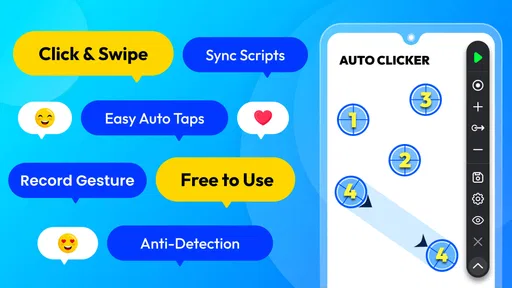

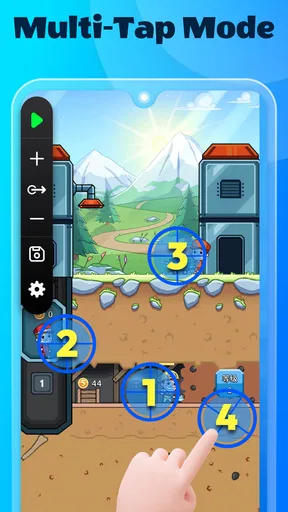
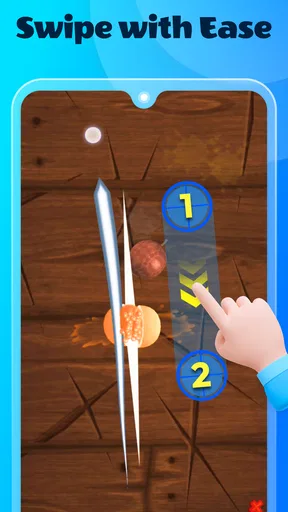
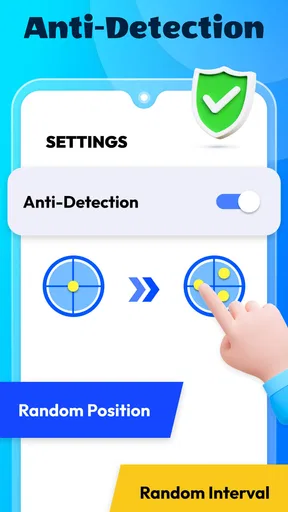
Our Review of Auto Clicker: Auto Tapper
 Analysis by Appyee
I tested Auto Clicker: Auto Tapper as a practical Android tool rather than treating it like a novelty. Its purpose is simple: it repeats taps and gestures so I do not have to keep touching the screen myself. That sounds narrow, but it becomes useful in shared-device situations, repetitive testing, accessibility routines, and any task where a finger would otherwise perform the same movement for a long time.
The app is made by Simple Design Ltd. and sits in the Tools category. It is free to install, aimed at Everyone, and works on Android 8.0 or later. The current version is 1.4.6, and its average rating is 4.8 from roughly 379 thousand ratings. Those figures suggest that the basic idea is easy for many people to understand, but popularity should not replace checking whether automated tapping actually fits your particular task.
How it works on a shared household device
The most convincing use case I found was a device that several people use for small, repetitive jobs. Imagine a tablet on a kitchen counter used by different members of the household. One person needs repeated taps while checking a long sequence of screens, another wants help with a routine that requires the same gesture, and a child is waiting for an adult to finish a repetitive step. Instead of asking someone to keep tapping, I can prepare the action and let the device handle the repetition.
That convenience is not the same as handing the device over without supervision. An auto-tapping tool acts on the screen, so the active setup matters. If another person opens a different app while the automation is still running, the taps may land in the wrong place. On a shared phone or tablet, I would always stop the routine before passing the device to somebody else and check what is currently on screen before starting it again.
This is where the app feels more useful than its short store description suggests. The benefit is not merely saving a few touches. It is reducing the attention needed for a repetitive sequence, which can make a shared device easier to coordinate when one person is preparing something and another is waiting to use it. I still keep the first run visible, because an automated gesture should be observed before I trust it to continue unattended.
For a simple repeated tap, the setup is easier to understand than a full automation suite. I can place the action where it belongs, adjust the behavior for the task, and watch whether the screen responds as expected. The exact routine depends on the app being controlled, so I would not assume that one arrangement works everywhere. A button that moves, a page that loads slowly, or a pop-up appearing unexpectedly can change the result.
Where the boundaries matter
The biggest practical boundary is that this is an input tool, not a decision-making assistant. It repeats what I configure; it does not understand whether a screen has changed, whether a warning has appeared, or whether the next tap is still appropriate. That makes it suitable for stable, predictable sequences and much less suitable for workflows that depend on reading content or reacting to changing layouts.
Before using it on a shared device, I would separate three things: the screen being controlled, the duration of the routine, and the person responsible for stopping it. That simple division prevents a common mistake—starting an automation and then assuming somebody else will notice when it needs to end. If the phone is handed to another household member, the person who started the sequence should be the one to stop and reset it.
I also recommend beginning with a short test. A brief run can reveal whether the touch point is aligned, whether the target remains in the same position, and whether the controlled app reacts too slowly or too quickly. This is a more reliable approach than immediately setting a long routine and discovering later that every tap landed on an unintended control.
The safest habit is to treat every automated tap as a temporary session, not a background household service. Start it for one clearly defined task, observe the result, and stop it before switching users or apps. That habit is especially important when the phone contains personal accounts, messages, purchases, or work information.
Keeping accounts and responsibilities separate
Auto Clicker: Auto Tapper does not turn a shared device into a multi-user system. It does not decide whose account is open, and it does not know whether the visible screen belongs to a parent, child, guest, or colleague. If several people use one Android device, account boundaries still have to be managed through the device and the individual apps themselves.
That distinction matters in ordinary situations. A parent might configure a repeated action while signed into a personal service, then leave the phone on a table. A child could pick it up and see the same screen, or an accidental tap could trigger something unrelated. The app can automate touches, but it cannot replace a lock screen, an account switch, or a conversation about who is allowed to use the device.
For that reason, I would not use it as a shortcut around household rules. If a task involves a personal account, I would complete it while present, stop the automation afterward, and return the device to its normal locked state. If the device belongs to a workplace or school, I would also follow the owner’s rules before enabling any tool that generates touch input.
The free price makes experimentation easy, although in-app purchases are listed at $1.99 per item. I would first use the free experience for the exact routine I care about rather than paying in advance for possibilities I may never need. That is particularly sensible in a household, where one person may find the tool useful while everyone else only needs the device for ordinary tapping.
Coordinating a routine with another person
Shared use works best when the automation has a clear handoff. My preferred pattern is simple: one person opens the correct screen, another person confirms that the target is visible, and the person who started the routine remains responsible for stopping it. This avoids vague instructions such as “leave it running” when nobody is sure what should happen next.
A useful trick is to describe the task in plain language before starting: which app is open, which control should be repeated, and what visible change means the routine is finished. That small explanation helps another household member recognize whether the process is behaving normally. It also makes it easier to stop early if the screen changes or an unexpected message appears.
I would be especially careful with routines that cross between screens. A repeated tap that is harmless on one page can become disruptive after navigation occurs. For example, if the target button disappears after a successful action, the same coordinates may begin pressing another control. The app is doing exactly what it was asked to do, but the surrounding interface has changed.
For a shared tablet used by children and adults, I would keep the first few sessions supervised. The point is not that the app is difficult; the point is that automated input removes the natural pause between one touch and the next. A person normally notices a changed screen because their finger stops. Automation can continue unless somebody actively watches and ends the session.
This also explains when a different option is better. If the household needs a full workflow that reacts to notifications, recognizes screen content, or coordinates several apps, a simple auto-tapper is not the right category of tool. A more advanced automation platform may be better, though it will usually require more learning and more careful configuration. For stable repeated touches, this app is easier to approach.
Age, trust, and sensible supervision
The Everyone content rating makes the app approachable for general household use, but an age label does not remove the need for context. A young user may understand how to place a tap point without understanding what the active app can do with repeated input. Adults should explain that automation can press controls quickly and that it should be stopped before opening personal conversations, account settings, or purchase screens.
I would not present the tool to a child as a way to bypass limits or leave an activity running without permission. That turns a convenience feature into a trust problem. A better approach is to use it together for a clearly agreed task, keep the device visible, and make stopping the routine part of the instructions rather than an afterthought.
Trust also applies between adults. On a shared phone, the person who enables an auto-tapping routine should tell others what is active. Silent automation can be confusing when someone touches the screen and sees another action happen immediately. A short warning—“the repeated tap is running; please wait until I stop it”—can prevent accidental interference.
There is a privacy angle here even without adding special claims about the app. Any tool that interacts with what is displayed deserves the same caution as other utilities installed on a personal device. I would avoid using it while sensitive information is open, especially if the device may be passed to another person. The safer workflow is to finish the automated task, stop it, close or lock the device, and then hand it over.
For older relatives or anyone who finds repetitive touch difficult, the app may offer practical relief, but I would set it up for them rather than expecting them to discover the right routine alone. The valuable part is the reduction in repeated physical effort. The limitation is that the setup still depends on the screen staying predictable, so a person should know how to stop the action if the display changes.
What I would use it for—and what I would avoid
I would choose this app for a repeated action that has a fixed location and a visible, easy-to-recognize result. Examples include holding a repeated on-screen control in place during a stable process, assisting with a routine demonstration, or reducing the number of manual taps in a controlled testing task. The common thread is predictability: I know where the action belongs and can see whether it is still correct.
I would avoid it for anything that requires judgment. It is not a substitute for reading instructions, confirming a payment, checking a recipient, or deciding whether a warning should be accepted. I would also avoid leaving it active while browsing normally, because ordinary navigation constantly changes the positions and meaning of controls.
Compared with tapping manually, the advantage is obvious: my finger and attention are freed from repetition. Compared with a phone’s built-in accessibility shortcuts, the appeal is that this tool focuses directly on repeated taps and gestures rather than asking me to assemble a broader accessibility workflow. Compared with advanced automation apps, it is more focused and less intimidating, but it also offers less help when a task needs conditions, recognition, or branching decisions.
That trade-off is important. A focused tool can be easier for a household member to understand, while a more powerful alternative may be better for someone building a complex routine. I would not install a larger automation package just to repeat one stable tap, but I also would not expect this app to manage a process that changes based on what appears on screen.
One practical insight is to design the routine around a safe stopping point rather than only around its starting point. Before tapping, I decide what visual result means “done” and where my finger—or the stop control—will be available. This is more useful than simply choosing a high repetition setting, because it makes the session easier to supervise and hand back to another person.
Another is to use a short, visible trial whenever the device is shared. A routine that works on a personal phone may behave differently on a tablet with a different layout or display scale. Testing on the actual household device catches alignment problems before they affect another user’s account or open screen.
A third is to keep automation and account changes in separate moments. I would never combine a repeated tap with switching profiles, opening private messages, or navigating a purchase flow. Finish the mechanical task first, stop the automation, then perform account-sensitive actions manually. That separation reduces the chance that a leftover tap will cross an important boundary.
Everyday household scenario
Consider a family tablet used for a repetitive setup task while one adult prepares dinner. The adult opens the relevant app, places the tap action on the fixed control, and runs a short test while watching the screen. Once the sequence behaves correctly, they keep the tablet on the counter rather than handing it to a child. When the visible result appears, they stop the routine before opening another app.
In that situation, the app saves attention without pretending to supervise the whole device. The adult still decides when the action begins and ends, and the child is not asked to manage an automation that could continue after the screen changes. If another family member needs the tablet, the handoff happens only after the active routine is stopped.
That example captures my overall view. The tool is helpful when the household treats it like a small appliance for one repetitive motion. It becomes risky or frustrating when people treat it like an intelligent assistant that understands the screen, the account, or the person using the device.
My household verdict
After using it, I see Auto Clicker: Auto Tapper as a focused Android utility with a clear strength: it removes repetitive taps from predictable tasks. Its 10 million-plus installs and strong average rating of 4.8 show that the idea has broad appeal, but my recommendation is more specific. I would suggest it to someone who needs repeated touch input and is willing to supervise the setup.
It is a good fit for a shared device when responsibility is explicit. The person who starts the routine should remain nearby, stop it before a handoff, and keep personal accounts separate from automation. The Everyone rating makes it suitable for general audiences, but younger users and less confident users still benefit from an adult explaining what the active action can do.
I would skip it if the real need is conditional automation, screen recognition, multi-app coordination, or unattended account activity. In those cases, a more advanced tool—or simply manual confirmation—will be safer and more capable. I would also skip it for tasks where one mistaken tap has serious consequences.
For ordinary repeated gestures, though, the app earns its place because it stays understandable. It does not need to become the center of a household’s device habits. Used briefly, visibly, and with clear boundaries, it can make a tedious shared-device task less annoying while leaving the important decisions in human hands.
Verdict
Strengths of Auto Clicker: Auto Tapper
- Simple interface makes tap automation easy to set up.
- Supports repeated taps at adjustable intervals.
- Floating controls allow quick access during other tasks.
- Useful for repetitive actions in compatible games and apps.
- Lightweight design with minimal setup required.
Limitations of Auto Clicker: Auto Tapper
- Some apps and games may block automated tapping tools.
- Advanced features may require a premium upgrade.
- Floating controls can occasionally obstruct on-screen content.
- Automation may stop when the device locks or the app closes.
- Excessive tapping can drain battery during long sessions.
Other Releases by Simple Design Ltd.
View All
Video Downloader - Downloader
Video Players & Editors4.7

Fonts Keyboard Themes & Emoji
Personalization4.7

Image to PDF - PDF Maker
Productivity4.9

Document Reader - PDF Editor
Productivity4.7
Similar Picks in This Category
View All
Google LLC4.0

Gboard - the Google Keyboard
Google LLC4.5

Google Play services
Google LLC4.3

Google Play Store
Google LLC4.9

Files by Google
Google LLC4.5

SHAREit: Transfer, Share Files
Smart Media4U Technology Pte.Ltd.4.3
Frequently Asked Questions
What is Auto Clicker: Auto Tapper used for?
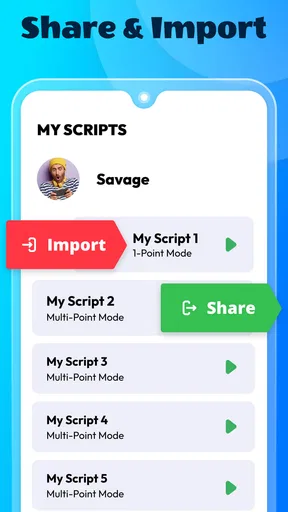
Auto Clicker: Auto Tapper is designed to automate repeated screen taps on an Android device. After opening the app and enabling the required accessibility permission, you can place one or more tap points over another application, choose the tapping interval, and start the automation. It can be useful for repetitive actions in games, testing, browsing, or other tasks, although its usefulness depends on the permissions and features available in your version.
Does Auto Clicker: Auto Tapper require root access?
In most cases, Auto Clicker: Auto Tapper does not require root access because it relies on Android’s Accessibility Service to simulate taps. During setup, the app normally asks you to enable its accessibility permission in the system settings. This permission is powerful, so you should review what the app can do, enable it only if you trust the application, and disable the service when you are finished using the auto-tapping features.
Can I customize the tapping speed and create multiple tap points?
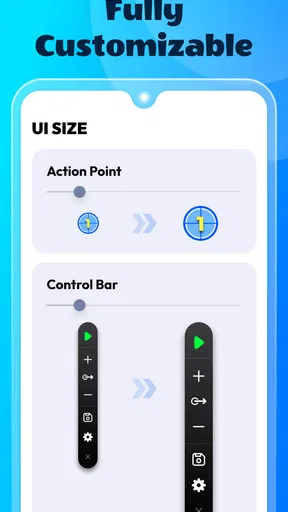
The app is generally intended to provide more control than simply repeating one fixed tap. Depending on the installed version, you may be able to adjust the interval between taps, set a duration or repeat count, and position several tap targets on the screen. These options are helpful for more complex routines, but extremely short intervals may not work reliably on every device and can cause missed taps, overheating, or unexpected behavior.
Is Auto Clicker: Auto Tapper safe to use in games and other apps?
The application can be convenient for repetitive actions, but safety depends on how and where it is used. Some games and online services prohibit automated tapping and may detect it, restrict an account, or treat it as a violation of their rules. You should check the terms of service before using the app, avoid automating sensitive actions such as payments or messages, and download only from a trustworthy source with permissions that match its purpose.
Why does Auto Clicker: Auto Tapper stop working after I switch apps or lock the screen?
Auto-tapping tools depend on Android system permissions and device settings, so they may stop when the accessibility service is disabled, the app is restricted by battery optimization, the screen is locked, or another application blocks overlays. To improve reliability, confirm that the accessibility permission remains active, allow the app to run without aggressive battery restrictions, and keep the screen awake when necessary. Compatibility can still vary between Android versions and manufacturers.
